Personas in BrandWise — Creating Target User Profiles for AI Evaluation
How to create personas in BrandWise: fields, description tips, and examples. Personas are required for multi-turn conversations in History mode.
What Is a Persona
A persona is a text-based profile of a target user on whose behalf the system conducts conversations with AI models. When BrandWise sends queries to ChatGPT, Claude, or Gemini in History mode, the model interacts not with a generic user but with a specific profile — someone with a defined age, task, expertise level, and context.
This brings evaluation closer to real-world usage patterns, since AI models adapt their responses to the conversational style of the user.
When You Need a Persona
A persona is required for History mode (multi-turn conversations) and not needed for Basic mode (single-turn queries).
| Scenario Mode | Persona | Description |
|---|---|---|
| Basic | Not required | Each intent is sent to the model as a standalone message |
| History | Required | The model engages in a dialogue with a virtual user (persona) completing a task over 1–10 turns |
In History mode, the persona defines the conversational style, while the History Task in the scenario defines the goal. Together, they create a realistic simulation of user behavior.
Learn more about scenario modes in the first project guide.
Persona Fields
Name
A short name to identify the persona in lists and when selecting it for a scenario. Up to 120 characters.
Examples:
E-commerce Marketing ManagerMid-size Business CTODesign Student
Best practices:
- The name should instantly communicate who the persona represents
- Include the role or key characteristic
- Avoid names like "Test Persona 1" — they don't help when selecting in scenarios
Description
A text portrait of the user. 10 to 1,000 characters. This description is sent to the model — it determines how the AI will conduct the conversation.
What to include:
| Component | Example | Why |
|---|---|---|
| Age and role | "32, head of marketing" | Model adapts level of detail |
| Task context | "Looking for a social media analytics SaaS" | Model understands the conversation goal |
| Budget / constraints | "Budget up to $500/month" | Model factors constraints into recommendations |
| Expertise level | "Tech-savvy, familiar with APIs" | Affects depth and style of responses |
| Needs | "Needs Slack and HubSpot integration" | Model focuses on relevant details |
Good description example:
Marketing manager, 32, works at an e-commerce company with 50 employees. Looking for a social media analytics SaaS solution, budget up to $500/month. Tech-savvy — understands APIs, webhooks, integrations. Priority: automated reporting and brand mention monitoring.
Weak description example:
A regular internet user.
The more specific the description, the more realistic the model's dialogue and the more informative the metrics in your report.
How to Create a Persona
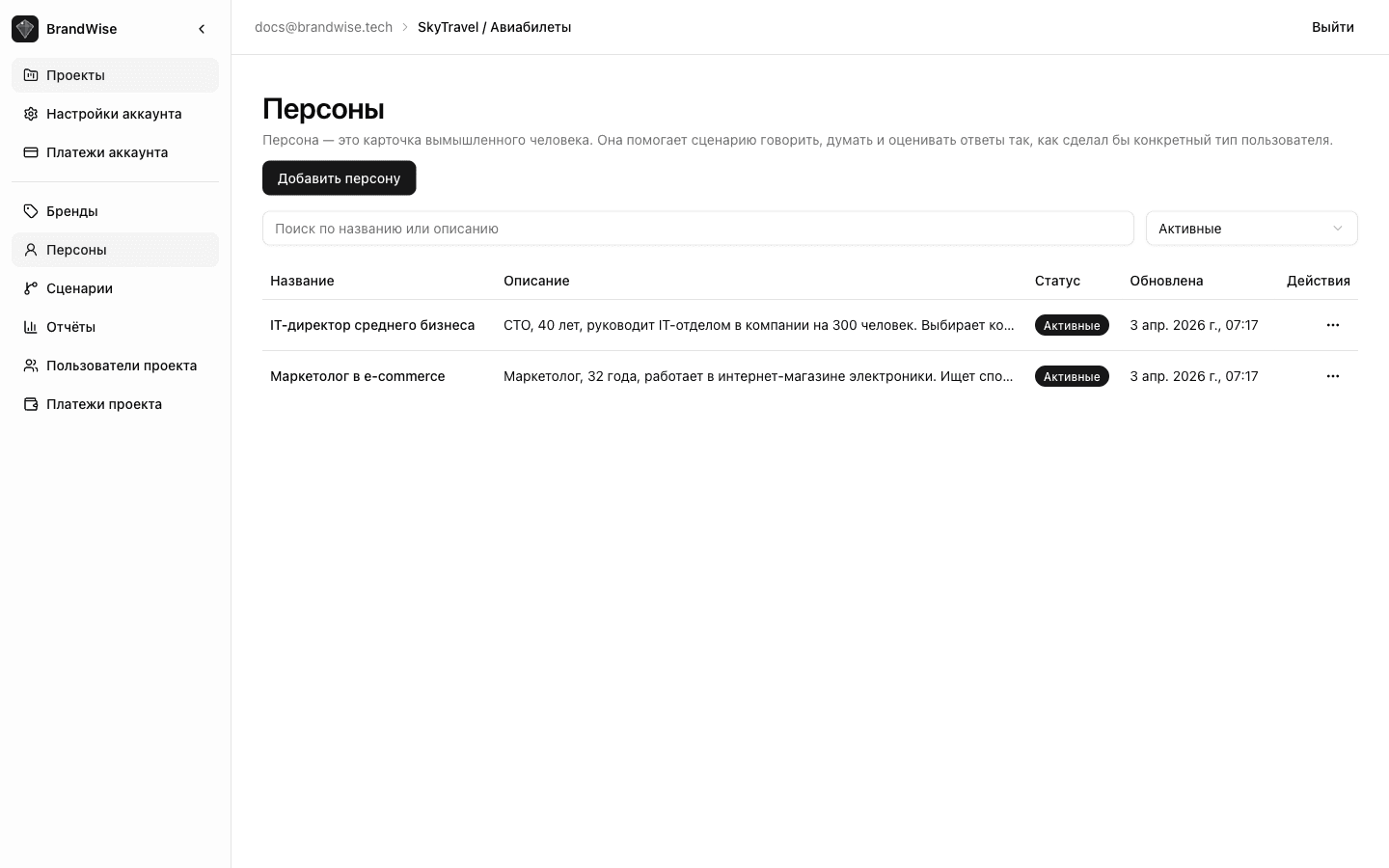
From the Project's Personas Section
- Open the Personas section in the project sidebar.
- Click Create Persona.
- Fill in the name and description.
- Click Save.
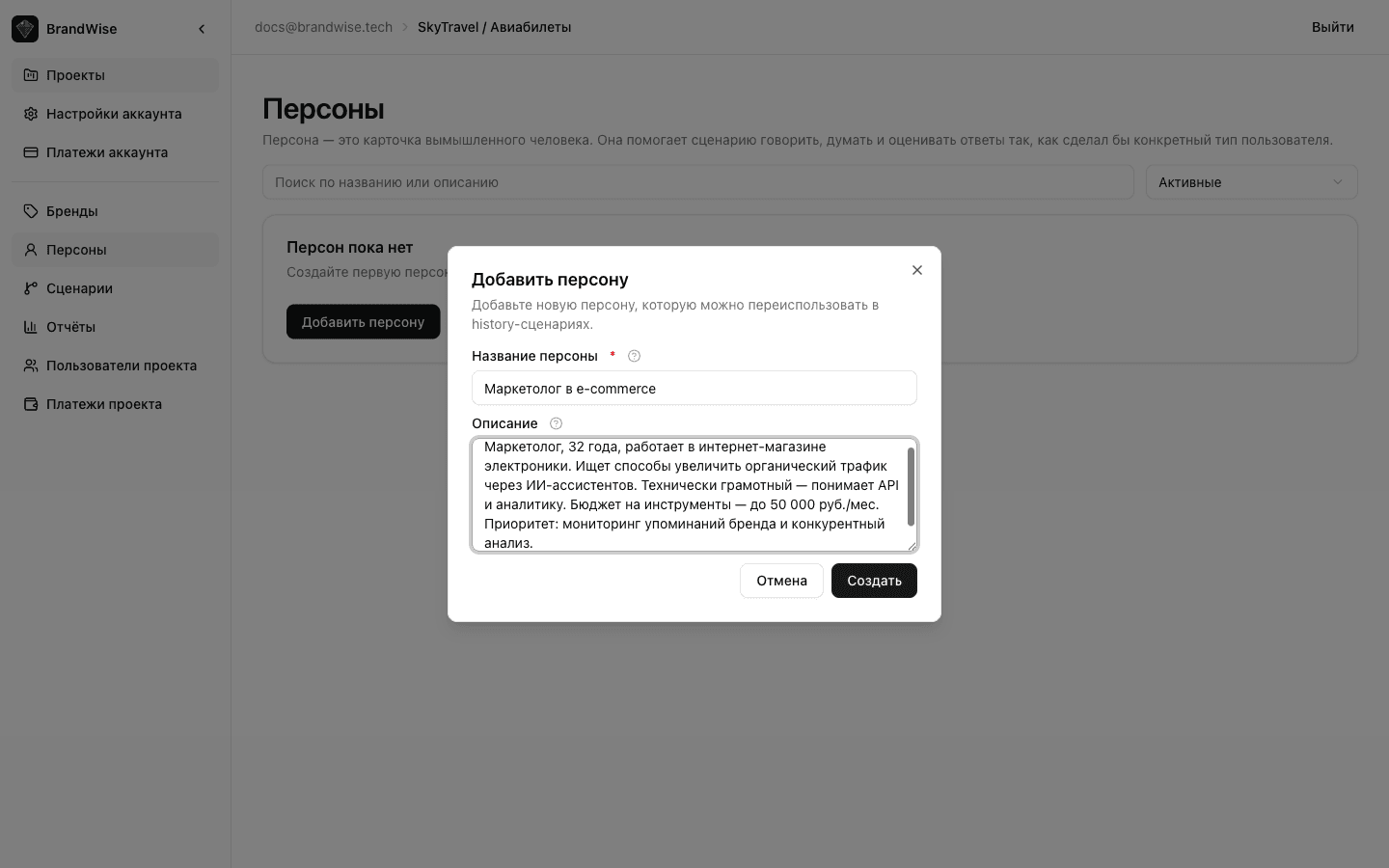
The persona will appear in the list and be available for selection in all project scenarios.
Quick Creation from Scenario Editor
When setting up a scenario in History mode:
- In the Persona field, click Create Persona.
- Fill in the name and description in the modal window.
- Click Save — the persona will be automatically linked to the scenario.
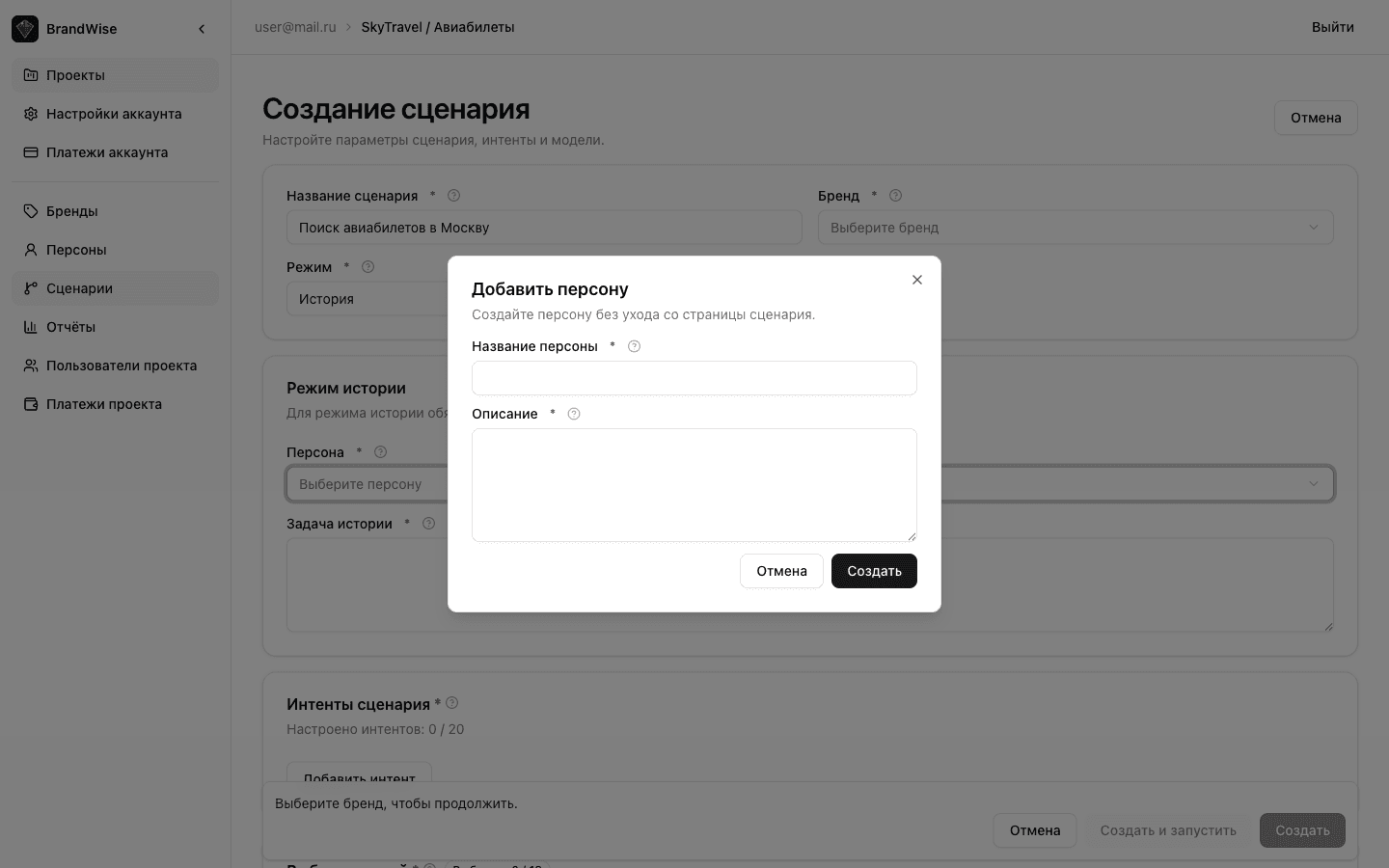
Personas created this way are also available in the project's Personas section and can be reused across other scenarios.
Reusing Personas
A single persona can be linked to multiple scenarios within a project. This is useful when you test the same user profile across different topics or models.
Example: a persona named "Mid-size Business CTO" can be used in a "CRM Selection" scenario and a "Cloud Storage Comparison" scenario — models receive the same user context, and you can compare results across evaluations.
Persona Examples for Different Use Cases
| Use Case | Persona Name | Description |
|---|---|---|
| B2B SaaS testing | Sales Director | "VP of Sales, 38, 200-person company. Looking for CRM with sales pipeline, email integration, and analytics. Budget up to $500/month for a 15-person team" |
| Restaurant testing | Business dinner guest | "Manager, 35, looking for a restaurant in downtown Manhattan for a business meeting with 4 people. Must be quiet, great menu, suitable for discussion. Budget $200–400" |
| EdTech testing | Self-taught student | "22 years old, learning to code independently. Basic Python knowledge. Looking for an online course with hands-on practice and mentorship. Budget limited to $50/month" |
What's Next
After creating personas, set up your brand profile if you haven't already, or go ahead and create your first scenario and run an evaluation.
Brand Profile in BrandWise — How to Configure for Accurate AI Evaluation
How to set up a brand profile in BrandWise: name, variations, positioning, tone of voice, attributes, and competitors. Complete guide with best practices.
BrandWise Scenarios — Creation, Configuration, Basic & History Modes
How to create a brand evaluation scenario in BrandWise: choosing Basic or History mode, adding intents, selecting AI models, and configuring persona and dialog task.